Top 10 KineMaster Alternatives (2026)
Hello, friends!👋 Welcome to another helpful guide on insanenotes.in.
So, you want to make awesome videos? You might have heard of an app called KineMaster. It is a very popular video editing app for Android phones. Many people love it because it is powerful and easy to use. But, there is a big problem. The free version of KineMaster puts a watermark on your videos. A watermark is a logo or text that sits on top of your video. To remove it, you have to pay money every month or every year.
That can be too expensive for many of us, right? Maybe you are a student, a beginner, or just someone who doesn’t want to pay for an app.
Well, I have good news for you! There are many other amazing video editing apps and software that are completely free and do not add a watermark. Some are even more powerful than KineMaster!
In this big guide, I will share with you the Top 10 KineMaster Alternatives for 2026. I will talk about apps for your Android phone and also software for your Windows or Mac computer. For each one, I will give you a simple review, list the good parts (pros) and the not-so-good parts (cons), and tell you who it is best for.
Let’s get started!
Why Are You Looking for a KineMaster Alternative?
First, let’s quickly understand why people want to switch from KineMaster. It’s a great app, but it has some downsides:
- The Watermark Problem: This is the biggest reason. The “KineMaster” watermark on your final video makes it look less professional. Removing it costs money.
- The Cost: To get all the cool features like extra effects, transitions, and assets, you need a paid subscription. This can be a lot for someone who just edits videos for fun.
- Can Slow Down Your Phone: KineMaster uses a lot of your phone’s power. On older or less powerful phones, it can become slow and laggy.
The goal is to find an app that gives you great features without these problems. And trust me, such apps do exist!
Part 1: The Best Free Video Editing Apps for Your Android Phone
Let’s start with the apps you can download right now from the Google Play Store.
1. CapCut – The King of Social Media Videos
My Simple Review:
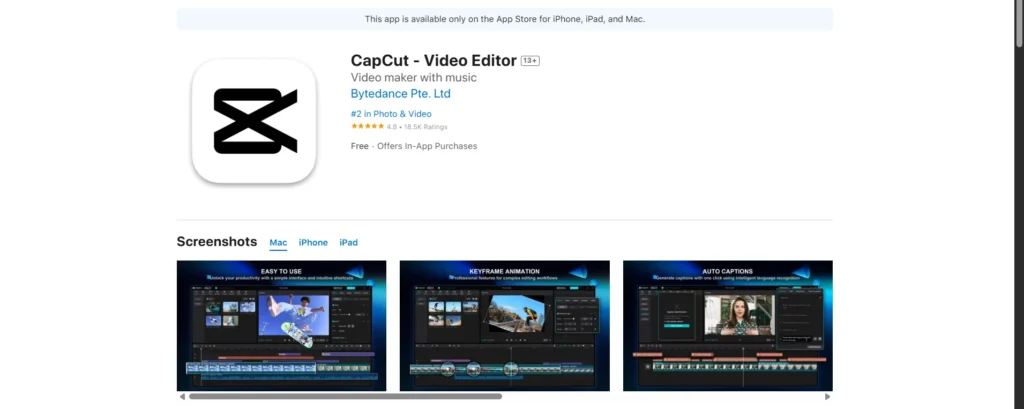
CapCut is like a magic wand for making videos for Instagram Reels, YouTube Shorts, and TikTok. It is made by ByteDance, the same company that made TikTok. The best part? It is 100% free with no watermark! I use this app very often because it is so easy and has everything you need for trendy videos.
What’s Good About It (Pros):
- Absolutely Free, No Watermark: You can export as many videos as you want, and there will be no CapCut logo anywhere. This is its biggest advantage.
- Huge Library of Trending Stuff: It has a massive collection of the latest songs, sound effects, and video templates that are popular on social media right now.
- Auto-Captions Magic: This feature is a game-changer. It can automatically listen to the speech in your video and add text captions for you. You can then edit the text and change the font style. It saves a lot of time!
- Easy to Use: The design is clean, and the buttons are big and easy to understand. Even if you are a complete beginner, you will find it simple.
What’s Not So Good (Cons):
- You See Ads: The app is free, so it shows you advertisements. They are usually not too annoying, but they are there.
- Needs Internet: To download the trending music and templates, you need an internet connection.
Best For: Anyone who wants to make videos for Instagram Reels, YouTube Shorts, or TikTok without any cost.
Also Read This:)
Grok AI Features and Review 2025 – Is Elon Musk’s AI Better Than ChatGPT?
2. InShot – The Best Friend for Beginners
My Simple Review:
InShot is like that friendly teacher who makes everything simple. It is not as powerful as some other apps, but it is incredibly easy and fun to use. If you are new to video editing and feel scared, start with InShot.
What’s Good About It (Pros):
- Super Easy Interface: The layout is very simple. You won’t get lost or confused. Everything is right where you expect it to be.
- Quick Watermark Removal: The free version does add a watermark, but you can remove it simply by watching a short 15-20 second ad. It’s a fair deal.
- Great Music and Stickers: It has a lot of fun music, sound effects, emojis, and stickers to make your video lively.
- Photo Editor Too: InShot is also a very good photo editor. So, you get two apps in one!
What’s Not So Good (Cons):
- Limited Advanced Features: You won’t find very advanced tools like keyframe animation here. It’s mostly for basic editing.
- Video Quality Can Drop: Sometimes, the free version exports videos in slightly lower quality.
Best For: Complete beginners, kids, and anyone who needs to make a quick, simple edit for a personal video.
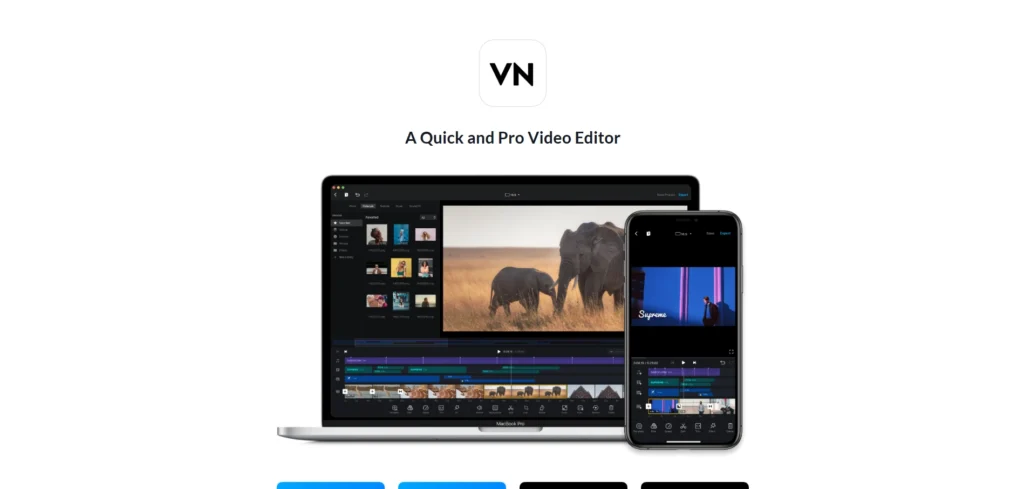
3. VN Video Editor – The Free Powerhouse
My Simple Review:
VN Video Editor is a hidden gem. It looks simple, but it has some very powerful features hidden inside. It gives you a professional-level editing experience without charging any money or forcing a watermark.
What’s Good About It (Pros):
- No Watermark, Truly Free: Just like CapCut, VN does not put any logo on your exported videos.
- Advanced Tools for Free: It supports keyframe animation, which lets you smoothly move text, stickers, or video clips across the screen. This is a feature usually found in paid apps.
- Excellent Multi-Layer Support: You can easily add multiple video tracks, audio tracks, and text layers. This gives you a lot of creative control.
- Smooth Performance: It is well-optimized and runs very smoothly on most Android phones.
What’s Not So Good (Cons):
- A Bit Hard to Learn: The interface has many buttons and options. It might feel a little overwhelming on the first day, but you will get used to it quickly.
Best For: Users who have some basic editing experience and want to create more professional-looking videos for free.
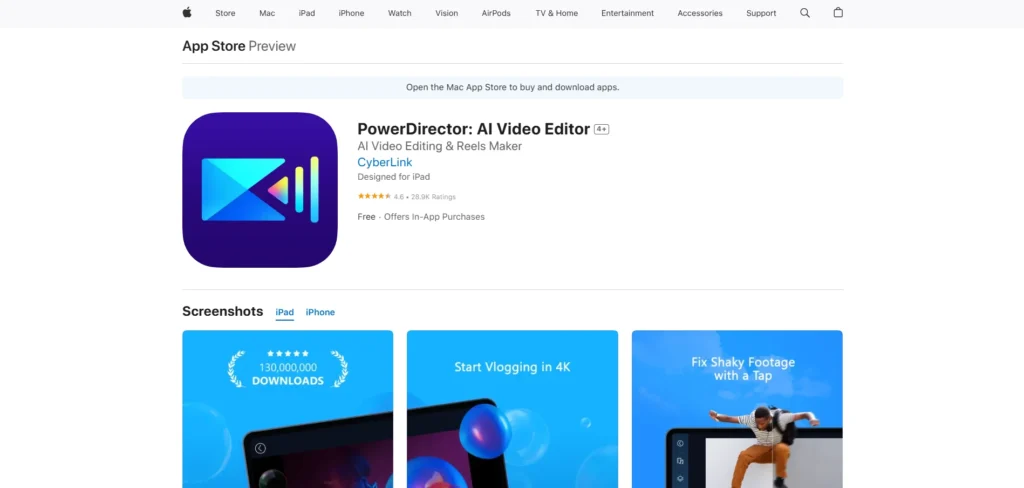
4. PowerDirector – The Feature-Packed Performer
My Simple Review:
PowerDirector is a famous name in video editing. Its mobile app is also very powerful and popular. It tries to bring desktop-level features to your phone.
What’s Good About It (Pros):
- Amazing Features: It offers a lot of effects, transitions, and editing tools. The free version itself is quite powerful.
- Chroma Key (Green Screen): This is a superstar feature. You can remove the background of your video and replace it with any image or video you want, just like in movies!
- Good Audio Control: You get more control over the sound in your video compared to other apps.
- Remove Watermark with Ads: The free version has a watermark, but you can remove it by watching an ad.
What’s Not So Good (Cons):
- Too Many Paid Prompts: The app constantly reminds you to buy the premium version to unlock more features, which can be annoying.
- Can Be Heavy: Because it has so many features, the app can take up more space and might slow down on older phones.
Best For: Users who want to experiment with advanced features like the Green Screen effect on their phone.
Also Read This:)
Top 9 Dark Web Search Engines Link (2025) – Explore Safely with Working .Onion Links
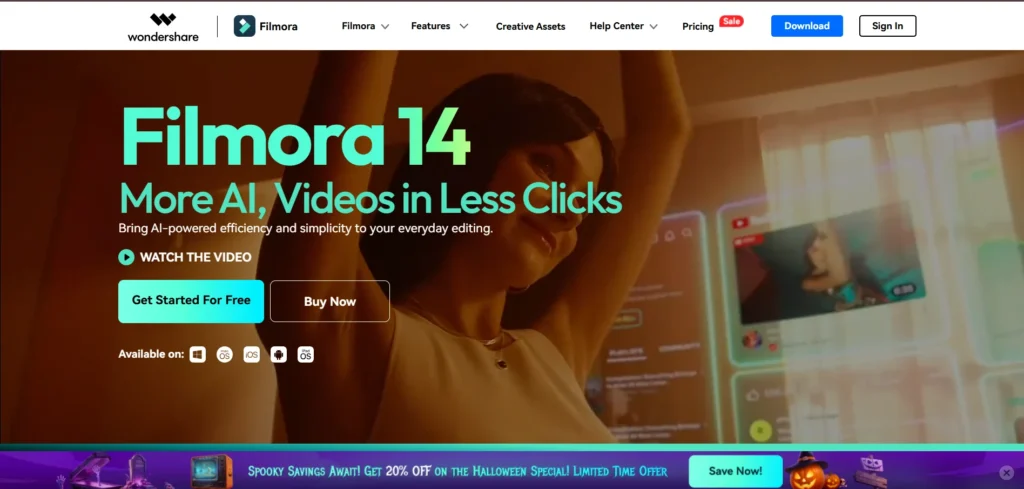
5. FilmoraGo – The Creative Playground
My Simple Review:
Filmora is a very popular video editing software for PC. FilmoraGo is its mobile version. It focuses on making your videos look creative and stylish with minimal effort.
What’s Good About It (Pros):
- Beautiful Effects and Filters: It has some of the most beautiful and trendy visual effects and filters. Your videos can look very cinematic.
- Smooth Transitions: The transitions between clips are very smooth and professional-looking.
- Easy to Use: The interface is colorful and inviting, making the editing process feel like fun.
What’s Not So Good (Cons):
- Very Limited Free Version: Many of the best effects, filters, and features are locked in the free version.
- Watermark is Present: The free version exports videos with a watermark.
- Export Quality: To export in high quality (like 1080p), you often need the premium version.
Best For: Users who love using creative filters and effects and don’t mind the watermark or limited features.
Comparison Table: Best Android Video Editing Apps
| App Name | Is It Free? | Watermark? | Easy for Beginners? | Best Feature |
|---|---|---|---|---|
| CapCut | Yes | No | Yes | Trending Music & Auto-Captions |
| InShot | Yes | Yes (Remove with Ad) | Very Easy | Super Simple Interface |
| VN Video Editor | Yes | No | A Little | Keyframe Animation |
| PowerDirector | Yes | Yes (Remove with Ad) | Yes | Green Screen (Chroma Key) |
| FilmoraGo | Yes | Yes | Yes | Creative Filters & Effects |
Part 2: The Best Free Video Editing Software for Your PC
Sometimes, you need a bigger screen and more power. Let’s talk about free video editing software for your Windows or Mac computer.
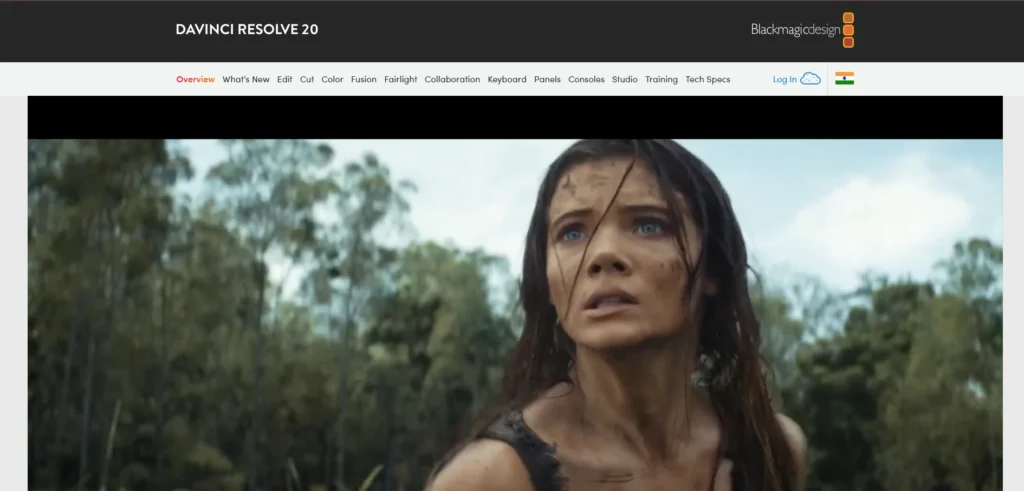
6. DaVinci Resolve – The Hollywood Giant
My Simple Review:
This is not just an alternative; it’s a giant leap. DaVinci Resolve is the software used by professionals to edit big Hollywood movies and Netflix shows. And guess what? Its free version is unbelievably powerful. It’s like getting a Ferrari for free.
What’s Good About It (Pros):
- Unmatched Power: The free version includes professional-level color correction, audio editing, and visual effects tools. You will never outgrow this software.
- Truly Free, No Watermark: There are no hidden costs. You can use it for any project, personal or commercial, without any watermark.
- All-in-One Tool: It combines editing, color grading, audio post-production, and visual effects all in one software.
What’s Not So Good (Cons):
- Very Difficult to Learn: The interface is complex and has a steep learning curve. It is not for beginners. You will need to watch tutorial videos on YouTube.
- Needs a Powerful Computer: It requires a good graphics card and a strong processor. It will not run well on old or low-end laptops.
Best For: Serious learners, aspiring professional editors, and anyone who wants the best free editing software available.
Also Read This 🙂
Top 10 High Salary AI Jobs in 2025 | Best Artificial Intelligence Career Options”
7. Shotcut – The Reliable and Open-Source Friend
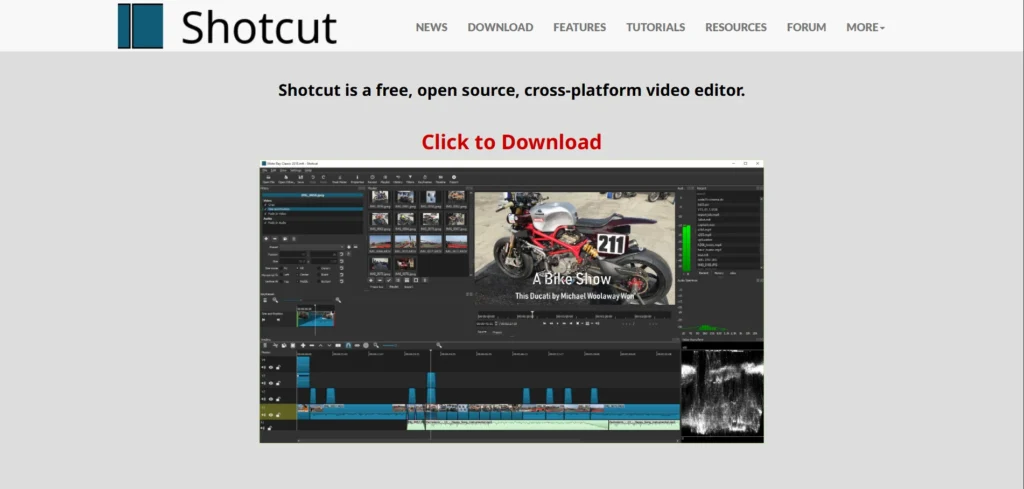
My Simple Review:
Shotcut is a 100% free and open-source video editor. This means it is built by a community of developers and will always be free. It is a reliable and trustworthy tool for basic to intermediate editing.
What’s Good About It (Pros):
- Completely Free Forever: No watermarks, no subscriptions, no nothing. It is truly free software.
- Supports Every File Type: It can work with almost any video or audio format you throw at it without needing to convert the file.
- Good Range of Features: It has a wide range of filters, effects, and editing tools that are more than enough for most YouTube videos.
What’s Not So Good (Cons):
- Old-Fashioned Design: The user interface looks a bit outdated and can be confusing at first.
- Can Be Slow: It might not be the fastest software, and previewing your edits can sometimes be laggy.
Best For: Users who want a solid, no-strings-attached free editor for their PC and don’t mind a slightly older design.
8. OpenShot – The Easiest PC Editor
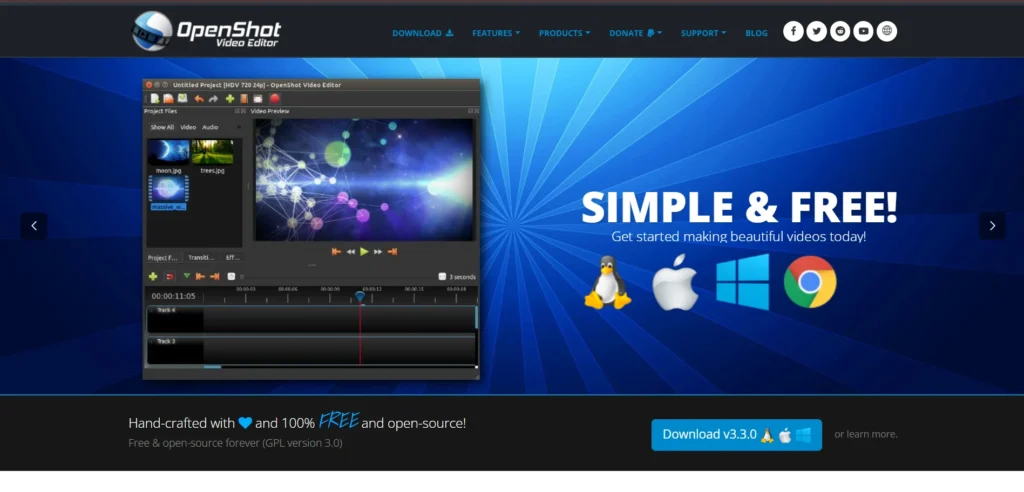
My Simple Review:
If DaVinci Resolve feels too scary, OpenShot is your best friend. It is probably the simplest and most beginner-friendly free video editor for PC. It makes video editing feel easy and fun.
What’s Good About It (Pros):
- Incredibly Easy to Use: The interface is simple and clean. It uses a drag-and-drop system that is very intuitive.
- No Watermark: You can export your videos without any OpenShot logo.
- Animated Titles: It has built-in tools to create cool-looking animated titles and lower-thirds.
What’s Not So Good (Cons):
- Can Be Buggy: Sometimes, the software can crash or have small bugs, so remember to save your project often.
- Limited Advanced Features: It is great for basic edits, but you won’t find advanced color grading or effects here.
Best For: Students, teachers, beginners, and anyone who needs to make simple videos quickly and easily on their computer.
Also Read This 🙂
AI vs Human Intelligence: Who is Smarter and Why? in 2025
9. VSDC Free Video Editor – The Hidden Powerhouse
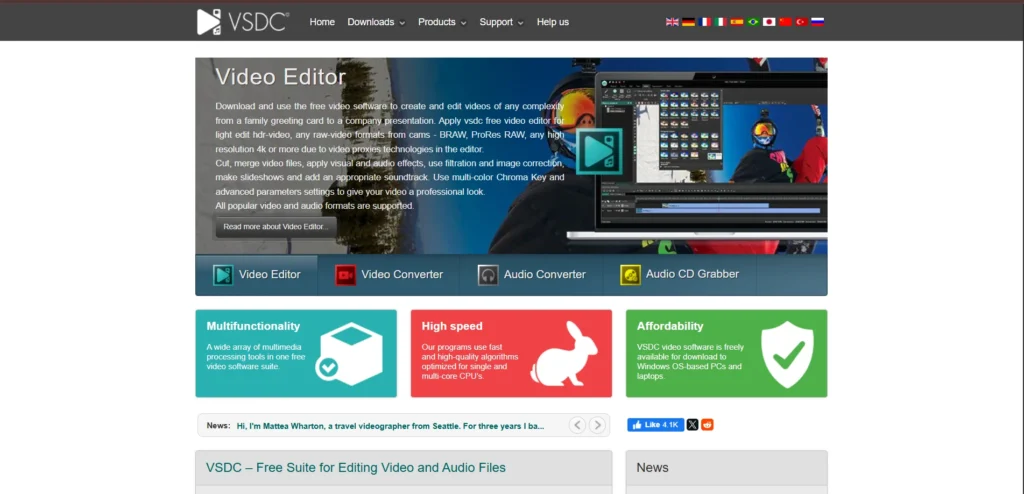
My Simple Review:
VSDC is a free video editor that packs a punch. It includes some advanced features that you usually only find in paid software, like video masking and color correction tools.
What’s Good About It (Pros):
- Advanced Features for Free: It offers features like a video mask tool and detailed color correction for free, which is rare.
- No Watermark: The free version does not add a watermark to your exports.
- YouTube Ready: It has preset profiles that make it easy to export your video in the perfect format for YouTube.
What’s Not So Good (Cons):
- Non-Standard Interface: The interface and workflow are different from most other editors and can take some time to get used to. It can feel a bit clunky.
Best For: Intermediate users who need advanced features like masking but cannot afford a paid software.
10. Kdenlive – The Community Favorite
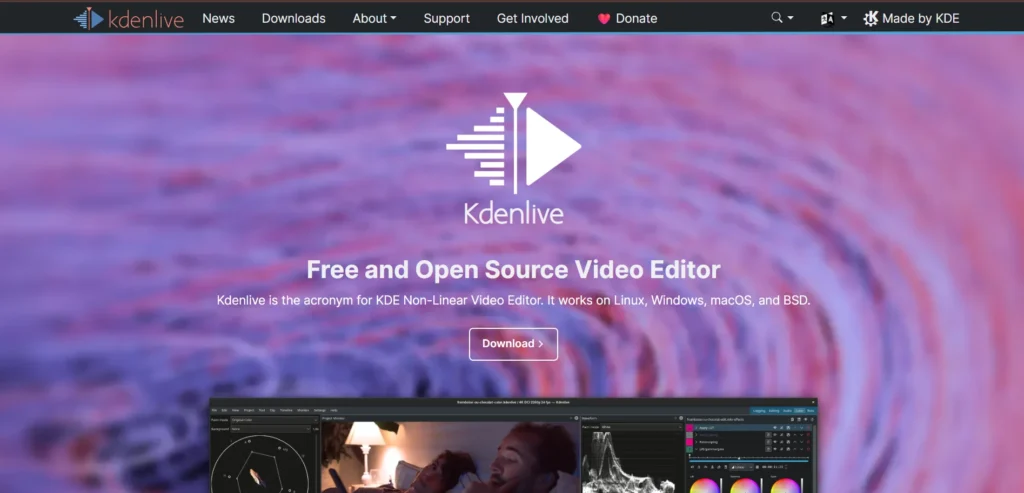
My Simple Review:
Kdenlive is a free and open-source video editor that is very popular in the Linux world, but it works great on Windows too. It is known for being stable and feature-rich.
What’s Good About It (Pros):
- Very Stable and Reliable: It is known for being a robust and crash-free editor, especially compared to other free options.
- Customizable Interface: You can move the panels and windows around to create a layout that you are comfortable with.
- Good for Multi-Track Editing: It handles multiple video and audio tracks very well.
What’s Not So Good (Cons):
- Technical Feel: The interface can feel a bit technical and might not be as welcoming for absolute beginners.
Best For: Users who want a stable and powerful free editor and are comfortable with a slightly more technical interface.
Also Read This🙂
Best AI Tools for Students and Professionals in 2025
Comparison Table: Best PC Video Editing Software
| Software Name | Is It Free? | Watermark? | Easy for Beginners? | Best Feature |
|---|---|---|---|---|
| DaVinci Resolve | Yes | No | No | Hollywood-Level Professional Tools |
| Shotcut | Yes | No | A Little | Supports All Video File Types |
| OpenShot | Yes | No | Very Easy | The Simplest Interface for PC |
| VSDC Free Editor | Yes | No | No | Advanced Features like Masking |
| Kdenlive | Yes | No | No | Very Stable & Reliable |
Frequently Asked Questions (FAQ)
Q1: Which app is the most like KineMaster but completely free and without a watermark?
Ans: For your Android phone, CapCut and VN Video Editor are the closest matches. They are powerful, easy to use, and most importantly, they do not add a watermark to your videos. They are the best direct replacements.
Q2: I am a total beginner. Which app should I try first?
Ans: If you are using a phone, please start with InShot. It is the easiest and least confusing. If you are on a computer, start with OpenShot. It is designed for people who are new to video editing.
Q3: Is DaVinci Resolve really 100% free? It sounds too good to be true.
Ans: Yes, it is truly 100% free. The free version is not a trial; it is a fully functional, powerful software that you can use forever. The paid “Studio” version adds a few extra advanced features, but the free version has more than enough for most people.
Q4: I want to become a professional YouTuber. Which software should I learn?
Ans: For long-term growth, you should learn DaVinci Resolve. It is the industry standard for color grading and is used by many professional YouTubers. Learning it will be a valuable skill. For quick social media clips, use CapCut on your phone.
Q5: Can I use these Android apps on an iPhone?
Ans: Absolutely! Most of the phone apps we discussed, including CapCut, InShot, VN Video Editor, and PowerDirector, are also available for free on the Apple App Store for iPhone users.
Use our Free Tools🙂
Free Online Image Converter | Convert JPG, PNG, WEBP, HEIC –SmartToolsWala
My Final Recommendation and Conclusion
So, friends, we have reached the end of our list. I know it was a long list, but I wanted to give you all the information.
To make it simple, here is my final recommendation:
- If you use an Android Phone: Download CapCut. It is the best all-rounder for free.
- If you are a total beginner on phone: Start with InShot.
- If you use a PC and are a beginner: Download OpenShot.
- If you use a PC and want to become a pro: Be brave and start learning DaVinci Resolve.
You don’t have to stick to just one app. I often use CapCut for quick Reels and DaVinci Resolve for my longer YouTube videos. The best app is the one that gets the job done for you.
I hope this detailed guide from insanenotes.in helps you find the perfect video editing app. Now, stop reading and start creating! Happy editing






1 thought on “Top 10 KineMaster Alternatives (2026) – Best Free Video Editing Apps for Android & PC”